Step 3: Routing Peers
Routing peers are NetBird-connected VMs that forward traffic between the WireGuard mesh and your on-premises LANs. Remote users connect to the routing peer over NetBird, and the routing peer forwards packets into the local network.
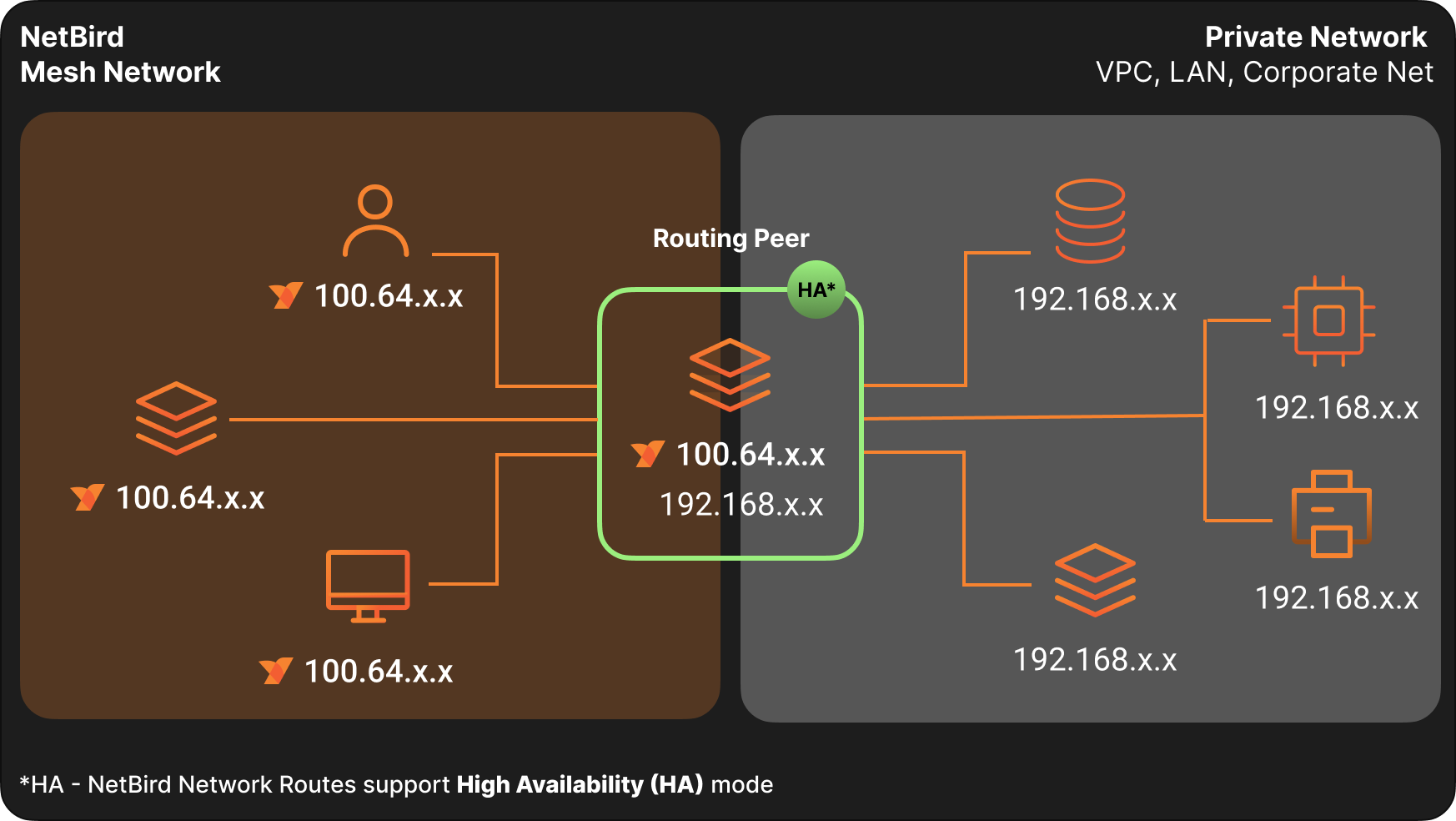
Site Summary
Section titled “Site Summary”| Site | Subnet | Routing Peer Name | IP | Hyper-V Host (Primary) | Hyper-V Host (HA) |
|---|---|---|---|---|---|
| Honolulu | 10.100.7.0/24 | gsi-nb-hnl-01 | 10.100.7.50 | DATA003 | DATA004 |
| Boulder | 10.15.0.0/24 | gsi-nb-bld-01 | 10.15.0.50 | DATA001 | DATA007 |
Key servers accessible through these routes:
Honolulu: AD0 (10.100.7.10), AD1 (10.100.7.11), FILES (10.100.7.15), SAGE (10.100.7.40)
Boulder: AD1 (10.15.0.10), AD2 (10.15.0.11), Zabbix (10.15.0.34)
3.1 Create Setup Keys
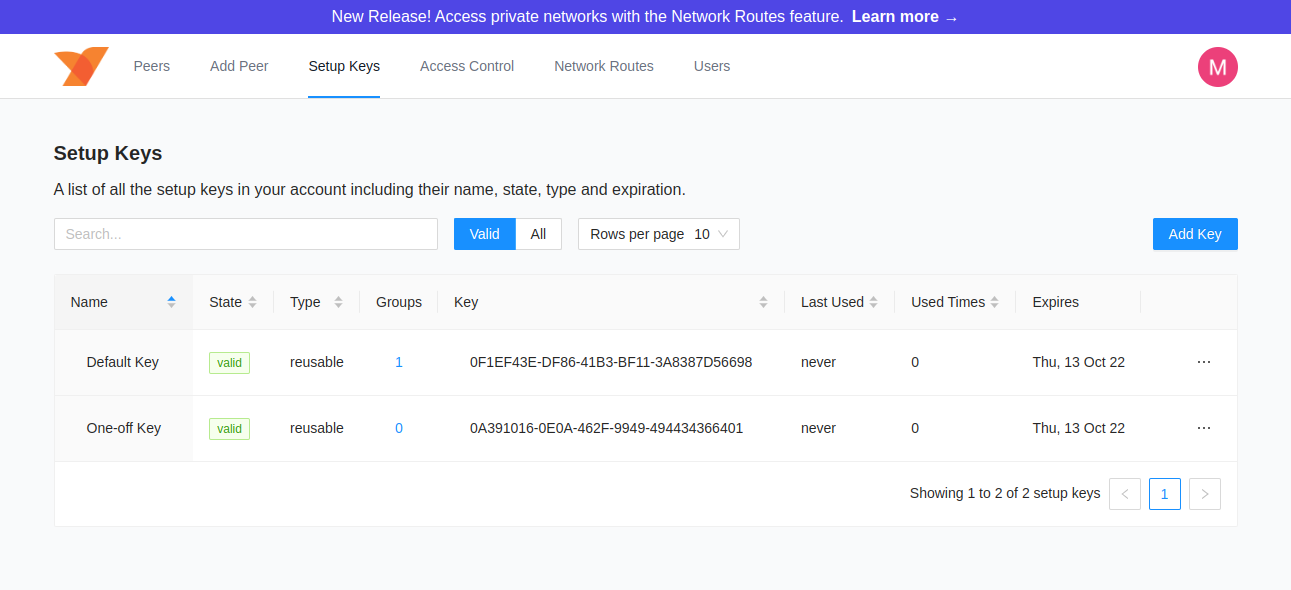
Section titled “3.1 Create Setup Keys”Create two setup keys in the NetBird Dashboard — one for each site’s routing peer group.
- Sign in to
https://netbird.gsisg.com - Go to Setup Keys > Create Setup Key
Honolulu Setup Key
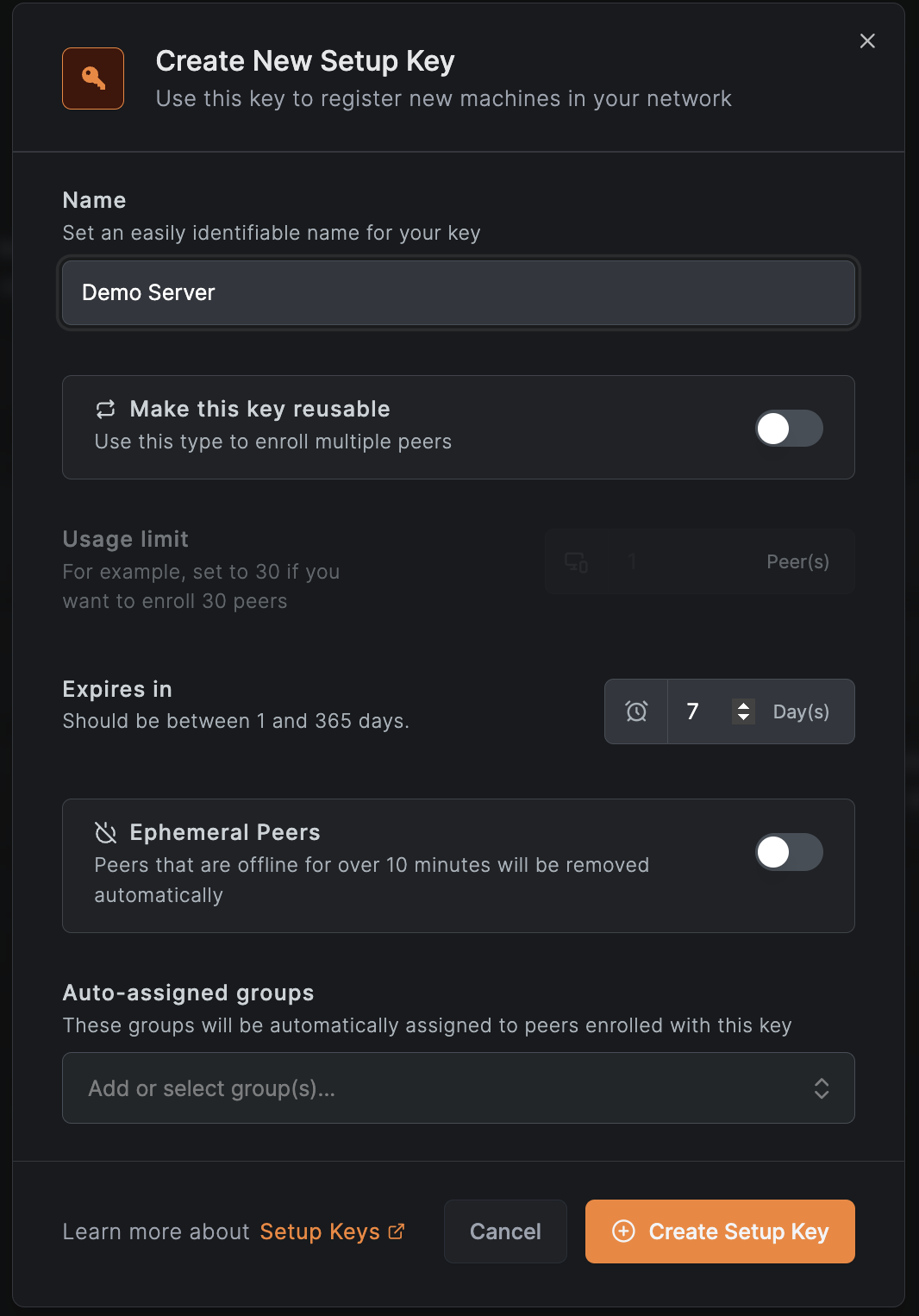
Section titled “Honolulu Setup Key”| Field | Value |
|---|---|
| Name | Honolulu Routing Peers |
| Type | Reusable |
| Usage Limit | 3 (primary + HA + spare) |
| Expires | 30 days from now |
| Auto-assigned groups | Create new group: HNL-Routing-Peers |
| Disable login expiration | Yes (routing peers must stay connected without user login) |
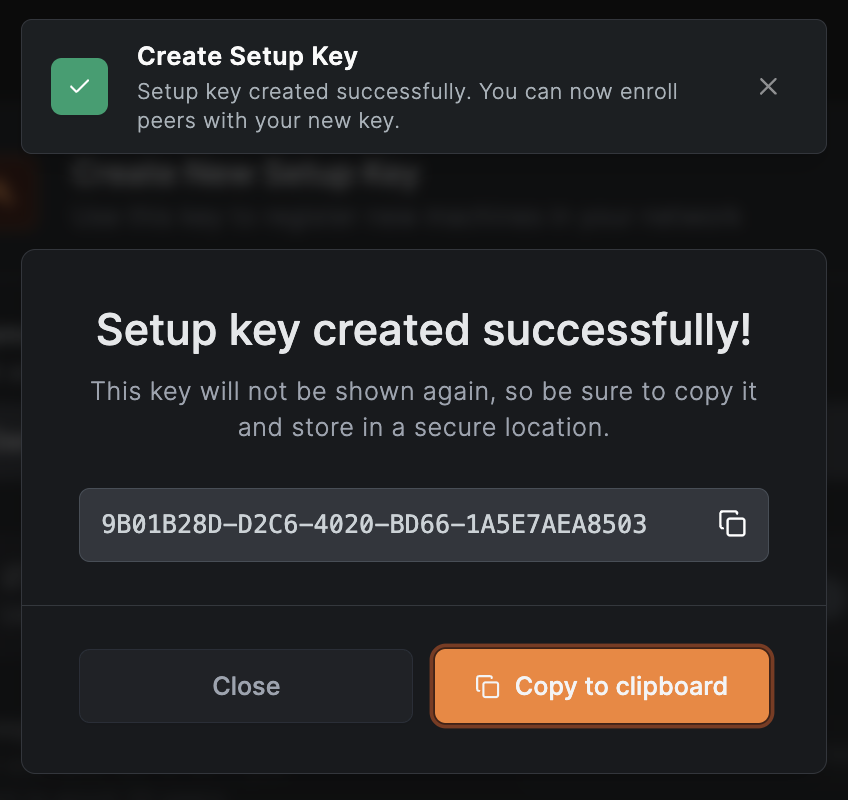
Click Create Setup Key and copy the key immediately.
Boulder Setup Key
Section titled “Boulder Setup Key”Repeat the process:
| Field | Value |
|---|---|
| Name | Boulder Routing Peers |
| Type | Reusable |
| Usage Limit | 3 |
| Expires | 30 days from now |
| Auto-assigned groups | Create new group: BLD-Routing-Peers |
| Disable login expiration | Yes |
Copy the key immediately.
3.2 Create the Hyper-V VMs
Section titled “3.2 Create the Hyper-V VMs”Create a lightweight Ubuntu 24.04 LTS VM on Hyper-V at each site. Routing peers do not need significant resources.
VM Specifications
Section titled “VM Specifications”| Setting | Value |
|---|---|
| OS | Ubuntu Server 24.04 LTS |
| vCPU | 2 |
| RAM | 2 GB (static) |
| Disk | 20 GB |
| Network | Connected to the production VLAN |
| IP | Static (see site summary table above) |
| Gateway | Site default gateway |
| DNS | Site domain controllers |
Honolulu VM: gsi-nb-hnl-01
Section titled “Honolulu VM: gsi-nb-hnl-01”- Host: DATA003 (HA peer on DATA004)
- IP: 10.100.7.50/24
- Gateway: 10.100.7.1
- DNS: 10.100.7.10, 10.100.7.11
Boulder VM: gsi-nb-bld-01
Section titled “Boulder VM: gsi-nb-bld-01”- Host: DATA001 (HA peer on DATA007)
- IP: 10.15.0.50/24
- Gateway: 10.15.0.254
- DNS: 10.15.0.10, 10.15.0.11
3.3 Install NetBird on the Routing Peers
Section titled “3.3 Install NetBird on the Routing Peers”SSH into each VM and run the following commands.
On gsi-nb-hnl-01 (Honolulu)
Section titled “On gsi-nb-hnl-01 (Honolulu)”# Install NetBirdcurl -fsSL https://pkgs.netbird.io/install.sh | sh
# Connect using the Honolulu setup keysudo netbird up \ --setup-key <HONOLULU_SETUP_KEY> \ --management-url https://netbird.gsisg.com
# Verify connectionsudo netbird statusOn gsi-nb-bld-01 (Boulder)
Section titled “On gsi-nb-bld-01 (Boulder)”# Install NetBirdcurl -fsSL https://pkgs.netbird.io/install.sh | sh
# Connect using the Boulder setup keysudo netbird up \ --setup-key <BOULDER_SETUP_KEY> \ --management-url https://netbird.gsisg.com
# Verify connectionsudo netbird statusExpected output should show Management: Connected and Signal: Connected.
Enable Auto-Start
Section titled “Enable Auto-Start”sudo systemctl enable netbirdEnable IP Forwarding
Section titled “Enable IP Forwarding”Routing peers must forward packets between the NetBird interface and the local LAN. Run on both VMs:
# Enable immediatelysudo sysctl -w net.ipv4.ip_forward=1
# Persist across rebootsecho 'net.ipv4.ip_forward=1' | sudo tee -a /etc/sysctl.d/99-netbird.confsudo sysctl --system
3.4 Verify Peers in Dashboard
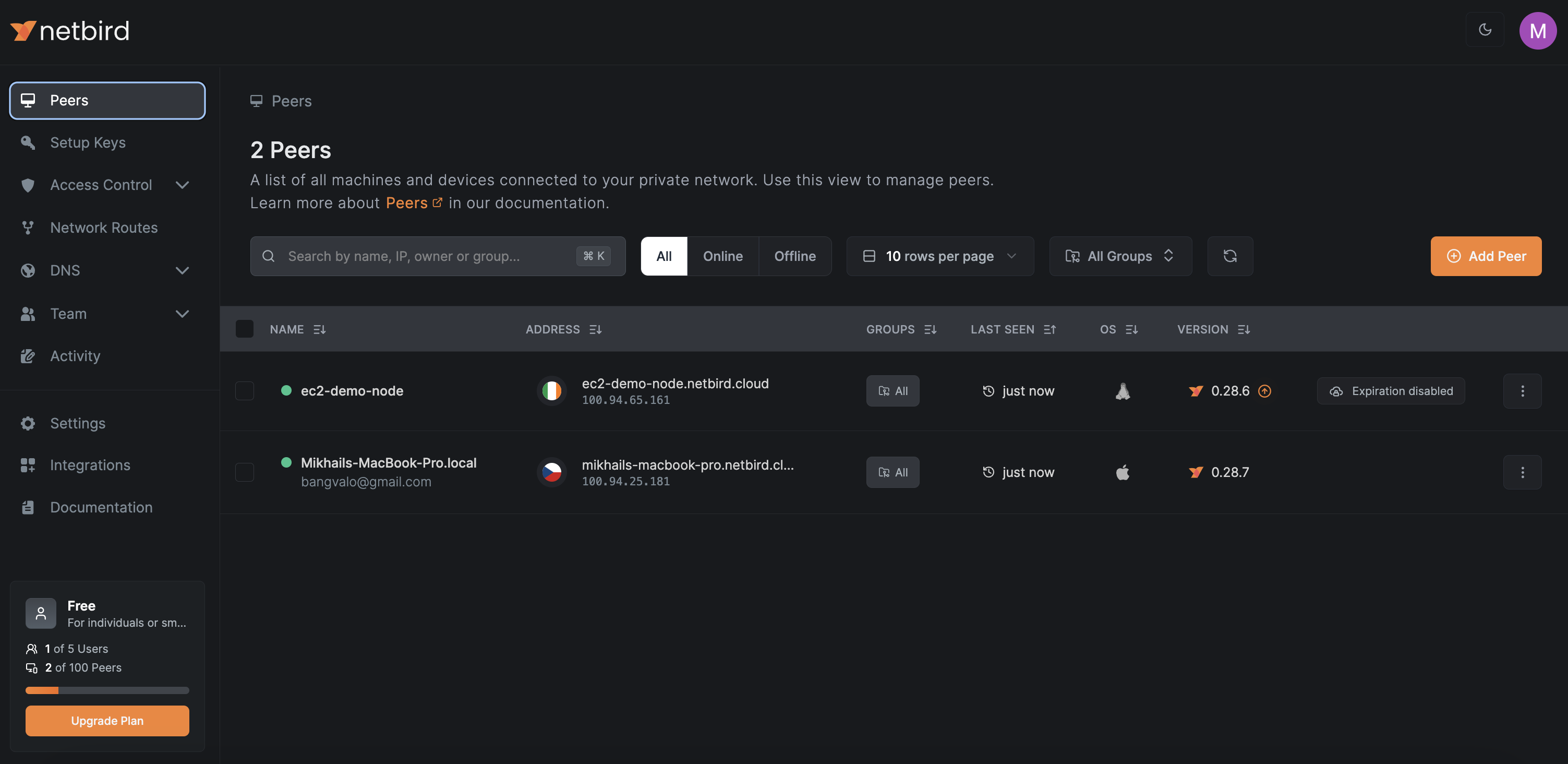
Section titled “3.4 Verify Peers in Dashboard”Open the NetBird Dashboard and go to the Peers tab. You should see both routing peers:
gsi-nb-hnl-01with groupHNL-Routing-Peersgsi-nb-bld-01with groupBLD-Routing-Peers
3.5 Create Network Routes
Section titled “3.5 Create Network Routes”Go to Network Routes > Add Route to create routes for each site.
Honolulu Network Route
Section titled “Honolulu Network Route”| Field | Value |
|---|---|
| Network identifier | honolulu-lan |
| Description | Honolulu office LAN (10.100.7.0/24) |
| Network range | 10.100.7.0/24 |
| Routing peer | Select Peer group tab, choose HNL-Routing-Peers |
| Distribution groups | All (all NetBird peers receive this route) |
| Access Control Groups | HNL-Routing-Peers |
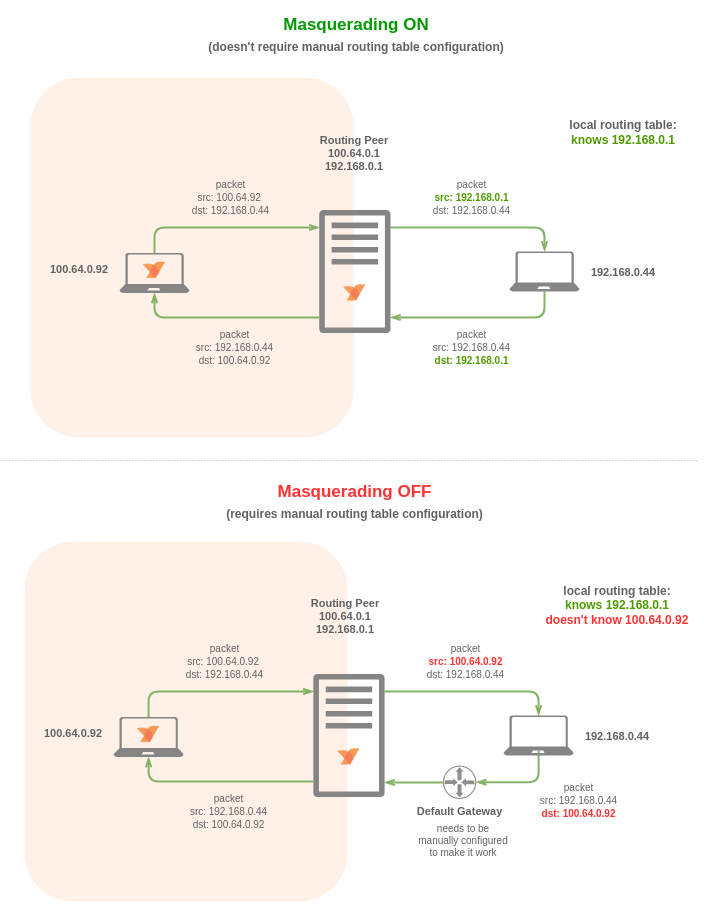
| Masquerade | Enabled (in Additional Settings) |
Click Add Route.
Boulder Network Route
Section titled “Boulder Network Route”| Field | Value |
|---|---|
| Network identifier | boulder-lan |
| Description | Boulder office LAN (10.15.0.0/24) |
| Network range | 10.15.0.0/24 |
| Routing peer | Select Peer group tab, choose BLD-Routing-Peers |
| Distribution groups | All |
| Access Control Groups | BLD-Routing-Peers |
| Masquerade | Enabled |
Click Add Route.
3.6 Create Site-to-Site Routes (Bidirectional)
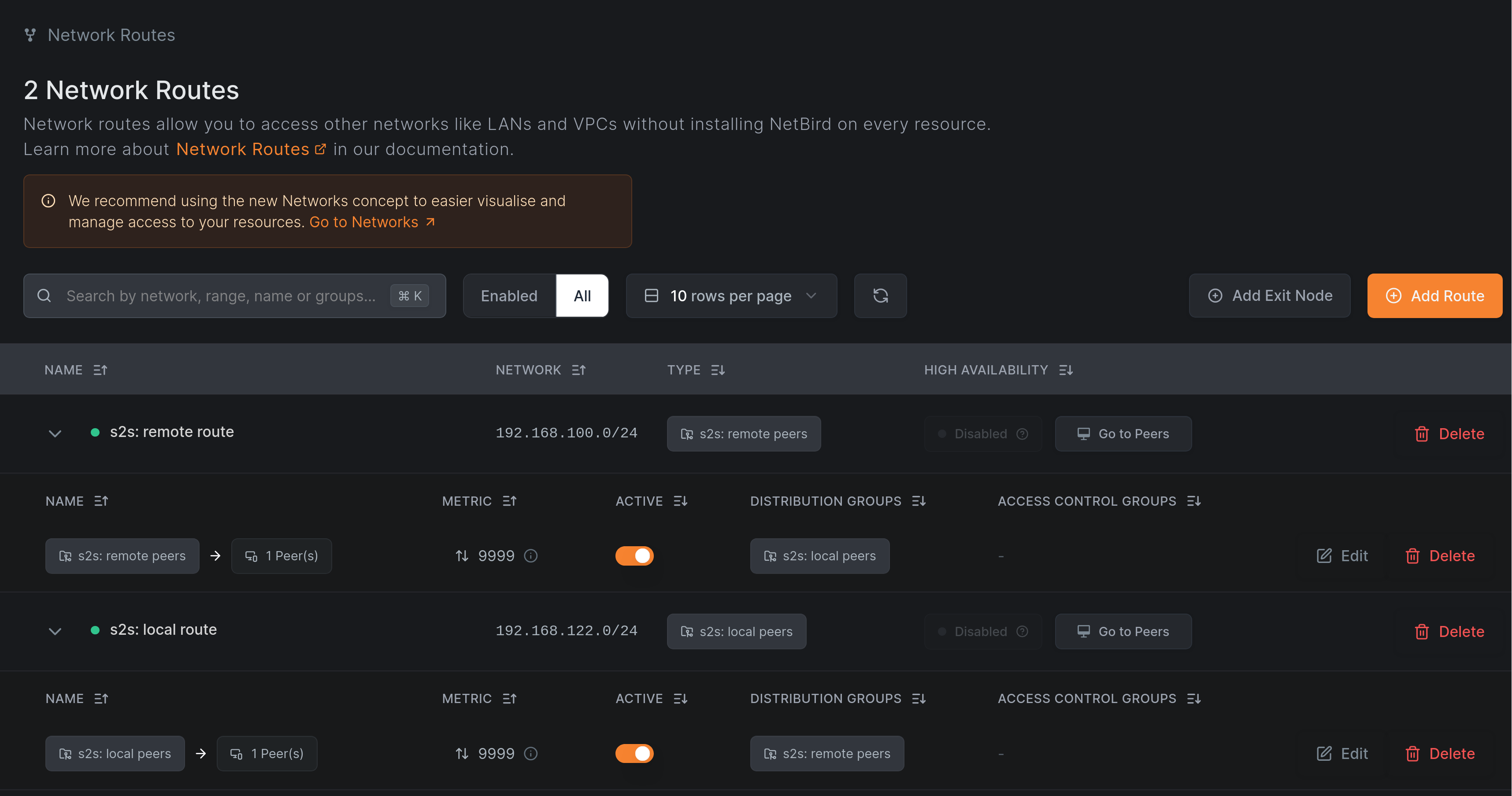
Section titled “3.6 Create Site-to-Site Routes (Bidirectional)”For direct office-to-office communication (e.g., Boulder AD replicating with Honolulu AD), create cross-site routes.
Boulder-to-Honolulu Route
Section titled “Boulder-to-Honolulu Route”| Field | Value |
|---|---|
| Network identifier | honolulu-lan (same as above — this creates an HA entry) |
| Network range | 10.100.7.0/24 |
| Distribution groups | BLD-Routing-Peers |
| Routing peer group | HNL-Routing-Peers |
| Access Control Groups | HNL-Routing-Peers |
| Masquerade | Enabled |
Honolulu-to-Boulder Route
Section titled “Honolulu-to-Boulder Route”| Field | Value |
|---|---|
| Network identifier | boulder-lan (same as above) |
| Network range | 10.15.0.0/24 |
| Distribution groups | HNL-Routing-Peers |
| Routing peer group | BLD-Routing-Peers |
| Access Control Groups | BLD-Routing-Peers |
| Masquerade | Enabled |
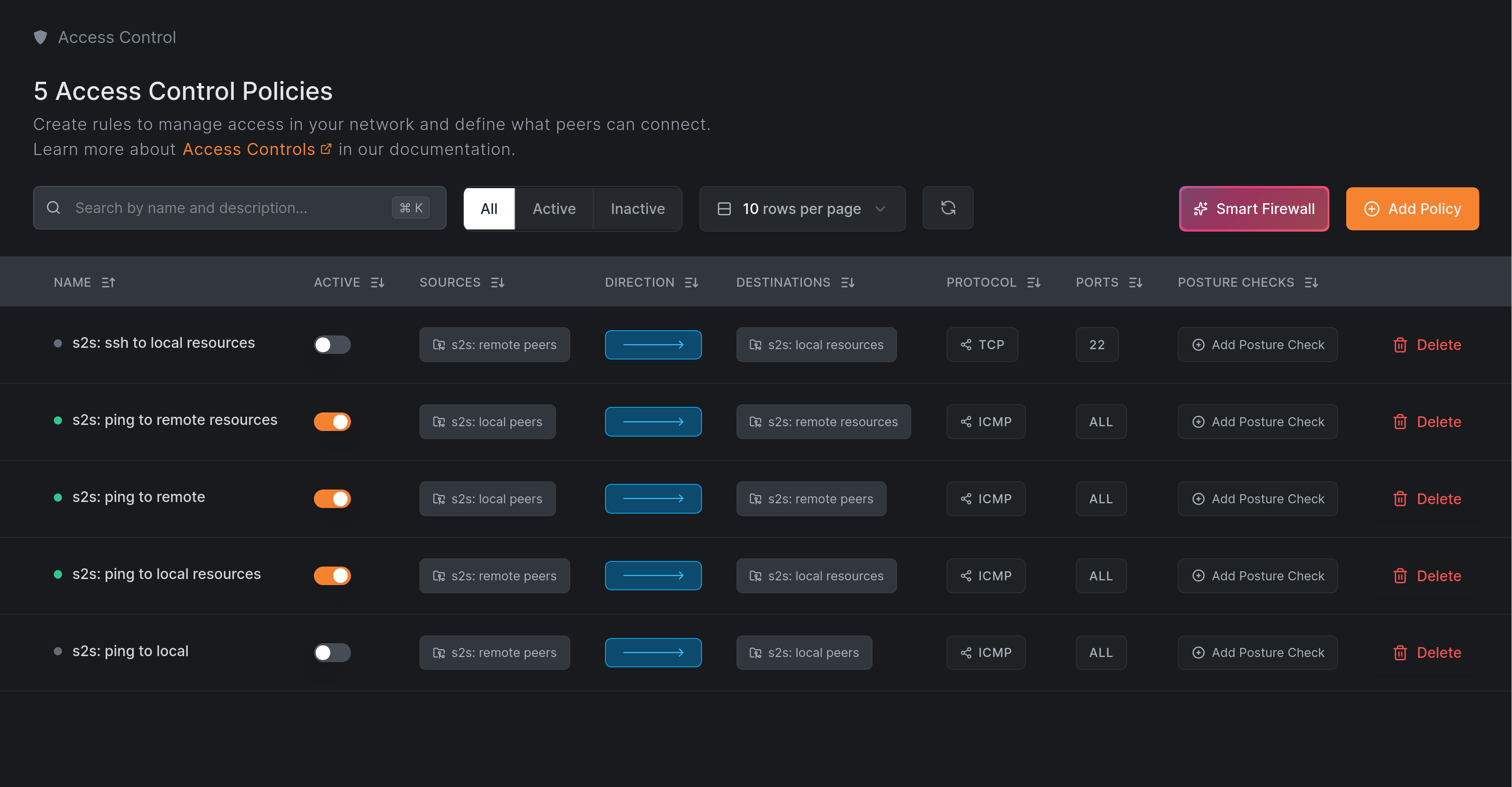
Then create access policies to allow the routing peers to communicate (this is covered in Step 4: Access Policies).
3.7 Optional: Add a Second Routing Peer Per Site
Section titled “3.7 Optional: Add a Second Routing Peer Per Site”NetBird supports multiple routing peers per route for automatic failover. This protects against a Hyper-V host hardware failure — if DATA003 dies, a second routing peer on DATA004 takes over automatically.
However, this is a lower-priority optimization. Two VMs on the same network share the same internet connection — if the ISP goes down, both go down. The primary resilience comes from having routing peers at both offices, not from duplicating them within one site. Start with one per site and add a second later if needed.
If you do want to add them later:
- Create a second VM on the alternate Hyper-V host (e.g.,
gsi-nb-hnl-02on DATA004, orgsi-nb-bld-02on DATA007) - Install NetBird with the same setup key — it auto-assigns to the same routing peer group
- Enable IP forwarding
- Set the primary peer’s metric to
100and the backup to200in the route’s Additional Settings
Verification
Section titled “Verification”At this point you should have:
- Two routing peer VMs running Ubuntu 24.04 with NetBird connected (one per site)
- IP forwarding enabled on all routing peers
- Network route for
10.100.7.0/24viaHNL-Routing-Peers - Network route for
10.15.0.0/24viaBLD-Routing-Peers - Masquerade enabled on all routes
- ACL Groups assigned to each route
- Site-to-site cross routes created
- All routing peers visible and connected in the Dashboard
Next Step
Section titled “Next Step”Proceed to Step 4: Access Policies to create groups and access control rules.