Step 6: Verification & Monitoring
This step verifies the entire deployment is working correctly, establishes monitoring, and configures backups for the management server.
6.1 Verify All Peers Are Connected
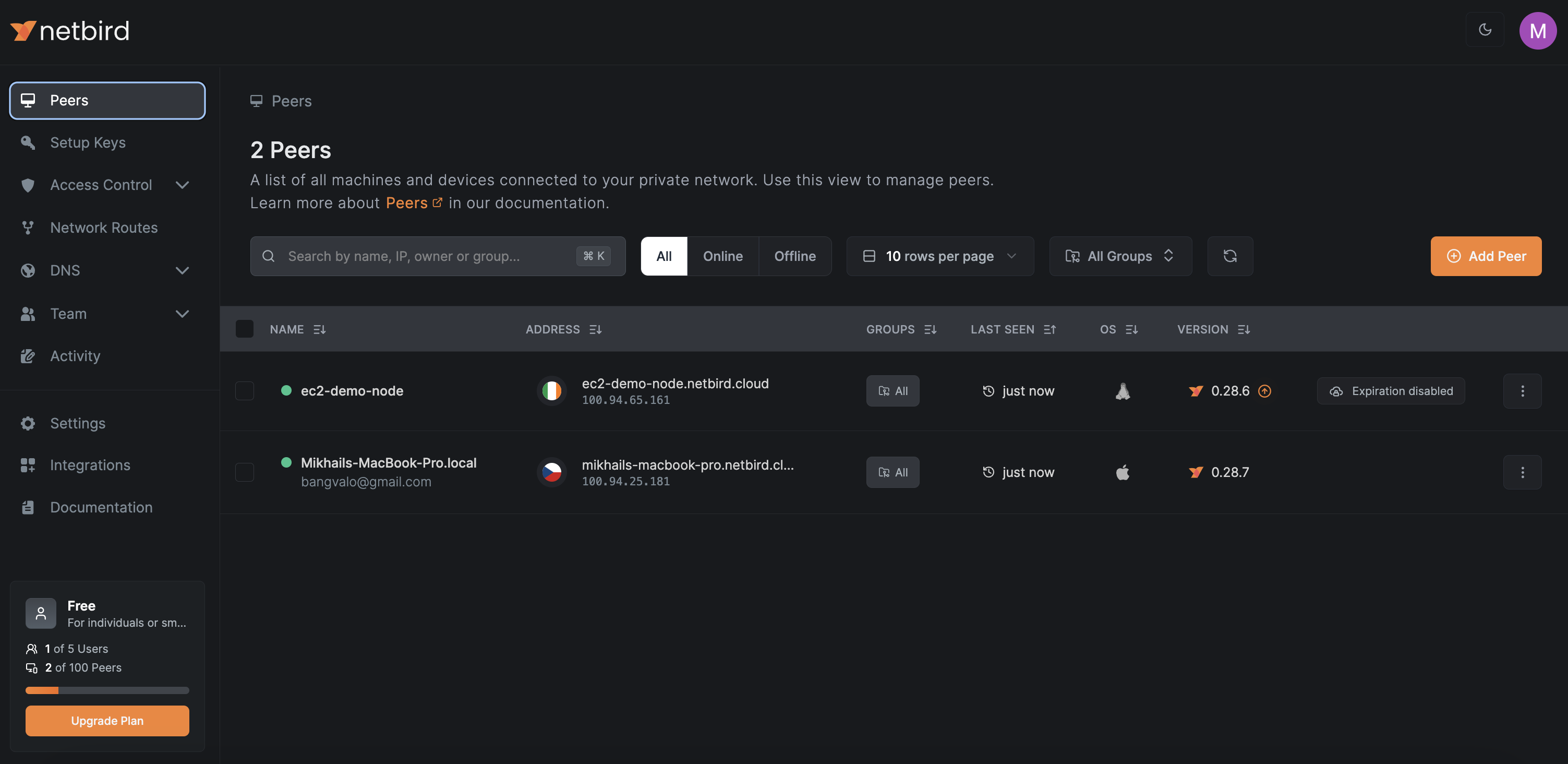
Section titled “6.1 Verify All Peers Are Connected”Open the NetBird Dashboard at https://netbird.gsisg.com and navigate to the Peers tab.
Check List
Section titled “Check List”| Check | How to Verify |
|---|---|
| Total peer count | Should match deployed machine count (~200 laptops + 4 routing peers) |
| Routing peers online | gsi-nb-hnl-01, gsi-nb-hnl-02, gsi-nb-bld-01, gsi-nb-bld-02 all show “Connected” |
| Group assignments | Routing peers in their respective groups; laptops in Company-Laptops |
| No stale peers | No peers stuck in “Disconnected” state for extended periods |
Verify Connection Type
Section titled “Verify Connection Type”On any connected Windows client, run:
& "C:\Program Files\NetBird\netbird.exe" status --detailLook for:
- Management: Connected
- Signal: Connected
- Relays: X/X Available
- Connection type: P2P (for same-network peers) or Relayed (for cross-NAT)
On routing peers (Linux):
sudo netbird status --detail6.2 Test Connectivity Scenarios
Section titled “6.2 Test Connectivity Scenarios”Run these tests from a Windows laptop that is not on either office LAN (simulates a remote worker).
Test 1: Domain Controller Ping
Section titled “Test 1: Domain Controller Ping”# Honolulu DCsping 10.100.7.10 # AD0ping 10.100.7.11 # AD1
# Boulder DCsping 10.15.0.10 # AD1ping 10.15.0.11 # AD2Test 2: DNS Resolution
Section titled “Test 2: DNS Resolution”nslookup gsisg.local 10.100.7.10nslookup gsisg.local 10.15.0.10Test 3: SMB File Share Access
Section titled “Test 3: SMB File Share Access”# Honolulu file servernet use \\10.100.7.15\ShareName /user:GSISG\usernamedir \\10.100.7.15\ShareName
# Or use UNC path in File ExplorerTest 4: RDP to a Server
Section titled “Test 4: RDP to a Server”mstsc /v:10.100.7.15Or use Remote Desktop Connection to connect to a server IP through the NetBird tunnel.
Test 5: SAGE Application (Honolulu)
Section titled “Test 5: SAGE Application (Honolulu)”Verify the SAGE application is accessible at 10.100.7.40 from a remote machine. The specific test depends on SAGE’s client requirements (TCP port, thick client, etc.).
Test 6: Site-to-Site
Section titled “Test 6: Site-to-Site”From a machine on the Boulder LAN (or the Boulder routing peer):
ping 10.100.7.10 # Honolulu AD0From a machine on the Honolulu LAN (or the Honolulu routing peer):
ping 10.15.0.10 # Boulder AD1Test 7: SSPR Password Reset Flow
Section titled “Test 7: SSPR Password Reset Flow”If using Azure AD Self-Service Password Reset with password writeback to on-prem AD:
- From a remote laptop connected via NetBird, navigate to
https://aka.ms/sspr - Complete a password reset
- Verify the new password works for on-prem AD authentication (sign out and back in, or test with
net use)
6.3 Dashboard Health Check
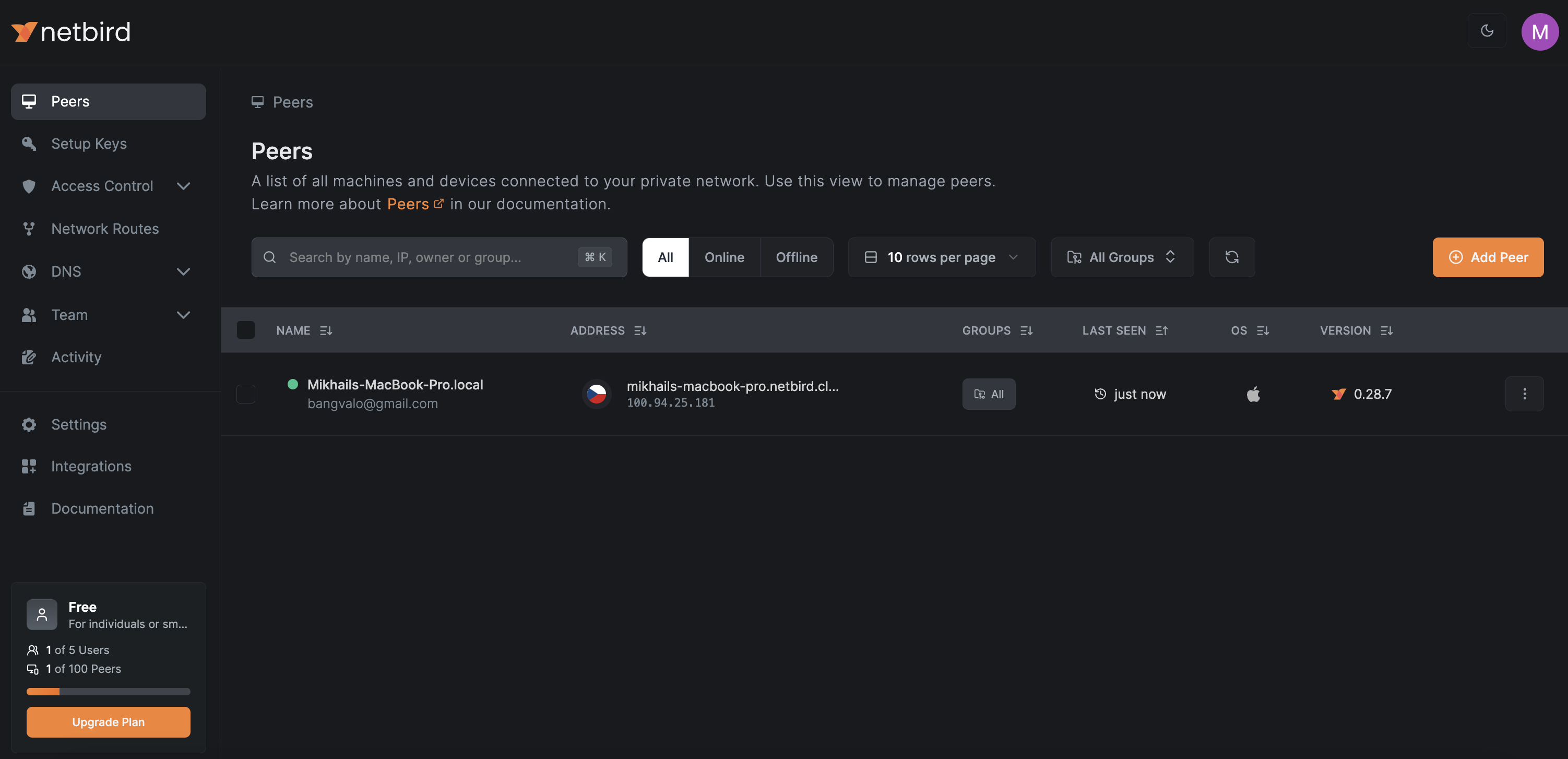
Section titled “6.3 Dashboard Health Check”Review these Dashboard sections:
| Section | What to Check |
|---|---|
| Peers | All expected peers connected, correct group assignments |
| Network Routes | Both routes active, routing peers healthy |
| Access Control | All 6 policies present, Default policy deleted |
| Setup Keys | Keys show correct usage counts |
| Activity | Recent activity shows peer connections and policy evaluations |
6.4 Configure Zabbix Monitoring
Section titled “6.4 Configure Zabbix Monitoring”Monitor the Azure management VM and routing peers with Zabbix (Zabbix server at 10.15.0.34).
Azure VM Monitoring
Section titled “Azure VM Monitoring”Install the Zabbix agent on vm-netbird-mgmt-01:
# On the Azure VMwget https://repo.zabbix.com/zabbix/7.0/ubuntu/pool/main/z/zabbix-release/zabbix-release_latest_7.0+ubuntu24.04_all.debsudo dpkg -i zabbix-release_latest_7.0+ubuntu24.04_all.debsudo apt updatesudo apt install -y zabbix-agent2
# Configuresudo sed -i "s/Server=127.0.0.1/Server=10.15.0.34/" /etc/zabbix/zabbix_agent2.confsudo sed -i "s/ServerActive=127.0.0.1/ServerActive=10.15.0.34/" /etc/zabbix/zabbix_agent2.confsudo sed -i "s/Hostname=Zabbix server/Hostname=vm-netbird-mgmt-01/" /etc/zabbix/zabbix_agent2.conf
sudo systemctl enable --now zabbix-agent2Key Metrics to Monitor
Section titled “Key Metrics to Monitor”| Metric | Threshold | Alert |
|---|---|---|
| Docker container status | Any container not running | Critical |
Disk usage on /var/lib/docker | > 80% | Warning |
| CPU usage | > 90% sustained 5 min | Warning |
| Memory usage | > 85% | Warning |
| TLS certificate expiry | < 14 days | Warning |
Process netbird on routing peers | Not running | Critical |
Custom Zabbix Checks for Routing Peers
Section titled “Custom Zabbix Checks for Routing Peers”Install Zabbix agent on each routing peer VM and add a UserParameter to check NetBird status:
UserParameter=netbird.status,netbird status 2>&1 | grep -c "Management: Connected"Expected value: 1 (connected). Alert if 0.
6.5 Backup Strategy
Section titled “6.5 Backup Strategy”What to Back Up
Section titled “What to Back Up”| Item | Location | Frequency | Method |
|---|---|---|---|
| Configuration files | VM working directory | After any config change | File copy |
| NetBird databases | netbird_data Docker volume | Daily | Docker volume copy |
| Encryption key | config.yaml (server.store.encryptionKey) | Once (store securely) | Password manager / Key Vault |
| TLS certificates | netbird_traefik_letsencrypt volume | Weekly | Docker volume copy |
Backup Script
Section titled “Backup Script”Create this script on the Azure VM at /opt/netbird-backup.sh:
#!/bin/bash# NetBird Backup Script# Run daily via cron: 0 2 * * * /opt/netbird-backup.sh
BACKUP_DIR="/opt/netbird-backups"DATE=$(date +%Y%m%d-%H%M%S)DEST="$BACKUP_DIR/$DATE"
mkdir -p "$DEST"
# 1. Copy configuration filescp ~/docker-compose.yml ~/config.yaml ~/dashboard.env "$DEST/"
# 2. Stop server and copy databasescd ~/docker compose stop netbird-serverdocker compose cp -a netbird-server:/var/lib/netbird/ "$DEST/data/"docker compose start netbird-server
# 3. Copy TLS certificates (Traefik Let's Encrypt)docker run --rm -v netbird_traefik_letsencrypt:/source -v "$DEST":/backup alpine \  cp -a /source/. /backup/letsencrypt/
# 4. Compresstar czf "$BACKUP_DIR/netbird-backup-$DATE.tar.gz" -C "$BACKUP_DIR" "$DATE"rm -rf "$DEST"
# 5. Retain last 30 days of backupsfind "$BACKUP_DIR" -name "*.tar.gz" -mtime +30 -delete
echo "Backup completed: $BACKUP_DIR/netbird-backup-$DATE.tar.gz"chmod +x /opt/netbird-backup.shsudo crontab -e# Add: 0 2 * * * /opt/netbird-backup.sh >> /var/log/netbird-backup.log 2>&1Off-Site Backup
Section titled “Off-Site Backup”Copy backups to Azure Blob Storage or another off-site location:
# Install Azure CLI on the VM (if not already installed)# Then use azcopy or az storage blob uploadaz storage blob upload \ --account-name gsisgstorage \ --container-name netbird-backups \ --file /opt/netbird-backups/netbird-backup-$DATE.tar.gz \ --name "netbird-backup-$DATE.tar.gz"Restore Procedure
Section titled “Restore Procedure”If you need to rebuild the management server:
- Provision a new VM with the same specs
- Install Docker and prerequisites (Step 1.4)
- Copy the backup files to the new VM
- Extract:
tar xzf netbird-backup-YYYYMMDD-HHMMSS.tar.gz - Restore config files to the working directory
- Restore the data volume:
Terminal window docker compose up -d # Creates volumesdocker compose stop netbird-serverdocker compose cp -a backup/data/ netbird-server:/var/lib/netbird/docker compose start netbird-server - Update DNS to point
netbird.gsisg.comto the new VM’s IP - Verify dashboard access and peer connectivity
6.6 Upgrade Process
Section titled “6.6 Upgrade Process”To upgrade NetBird to a new version:
-
Read the release notes for breaking changes:
-
Run a backup (Section 6.5)
-
Pull new images:
Terminal window docker compose pull -
Restart with new images:
Terminal window docker compose up -d --force-recreate -
Verify the Dashboard loads and peers reconnect
Final Verification Checklist
Section titled “Final Verification Checklist”The complete NetBird deployment is verified when all of the following are true:
Infrastructure
Section titled “Infrastructure”- Azure VM running, Docker healthy, all 3 containers up
- DNS
netbird.gsisg.comresolves correctly - TLS certificate valid (check in browser)
- Entra ID SSO login works
- Local admin break-glass accounts work
Routing
Section titled “Routing”- All 4 routing peers connected (2 per site, including HA)
- Network routes for 10.100.7.0/24 and 10.15.0.0/24 active
- Site-to-site routing works between offices
Access Control
Section titled “Access Control”- Default policy deleted
- All 6 custom policies active
- IT Admins can access all resources at both sites
- Engineers can access their respective site resources
- All staff can authenticate against DCs
Clients
Section titled “Clients”- All ~200 machines enrolled and showing in Dashboard
- NetBird service running as Windows service on all endpoints
- No conflicts with GlobalProtect during coexistence
- Users can access file shares, RDP, and applications through NetBird
Operations
Section titled “Operations”- Daily backups configured and tested
- Encryption key stored in at least 2 secure locations
- Zabbix monitoring configured for VM and routing peers
- Client secret expiration date calendared for renewal
- Upgrade process documented and tested